



Key takeaways:
- Download the app from Google Play or the App Store and link your account ID.
- Pay using UPI (GPay, PhonePe, Paytm, BHIM), net banking, or debit/credit card.
- Set up auto-pay once so your plan renews without any manual action.
- If a payment fails, check the UPI notification first and try an alternate method.
Missing a broadband payment can lead to service interruptions. The Tata Play Fiber app makes it easy to pay bills, track payments, and manage renewals from your phone. This guide covers each step, from first-time setup to troubleshooting a failed payment.
Why Pay Your Broadband Bill Online?
Paying online is faster and more convenient than traditional payment methods.
Pay anytime without visiting a service centre, view billing details and payment history in one place, receive instant payment confirmation, and access cashback offers - all of which also makes it easier to cut down costs on your Wi‑Fi internet plans over time.
Getting Started: Download and Set Up the Tata Play Fiber App
The app is available on both Android (Google Play) and iOS (App Store). Once downloaded, linking your account takes three steps:
- Open the app and tap Register or Sign In.
- Enter your registered mobile number or account ID. An OTP arrives within seconds.
- Verify with the OTP. Your account links automatically.
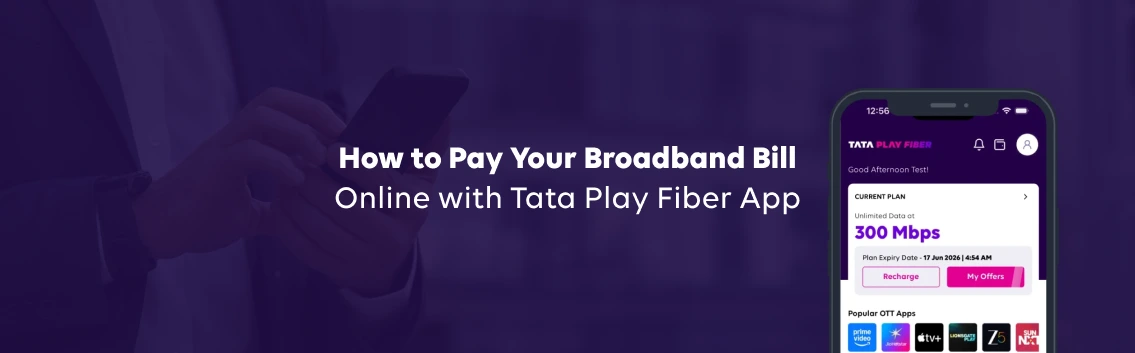
The home screen then displays your broadband connection status, outstanding amount, and next renewal date. You can view your broadband bill online from this screen without navigating further.
First-time setup takes under two minutes. Once done, the app remembers your login and payment preferences for future sessions.